Tapping your phone to pay with crypto feels simple when it works – and frustrating when it does not. If you are trying to figure out how to add crypto card to Google Wallet, the good news is that the process usually takes only a few minutes. The catch is that success depends on the card issuer, your region, your Android device, and whether your card is set up for mobile wallet provisioning.
For most users, the real goal is not just adding a card. It is getting instant access to stablecoin spending in the same places you already use contactless payments – coffee shops, grocery stores, ride shares, airports, and online checkout flows that support Google Pay. That is where a crypto card becomes practical instead of theoretical.
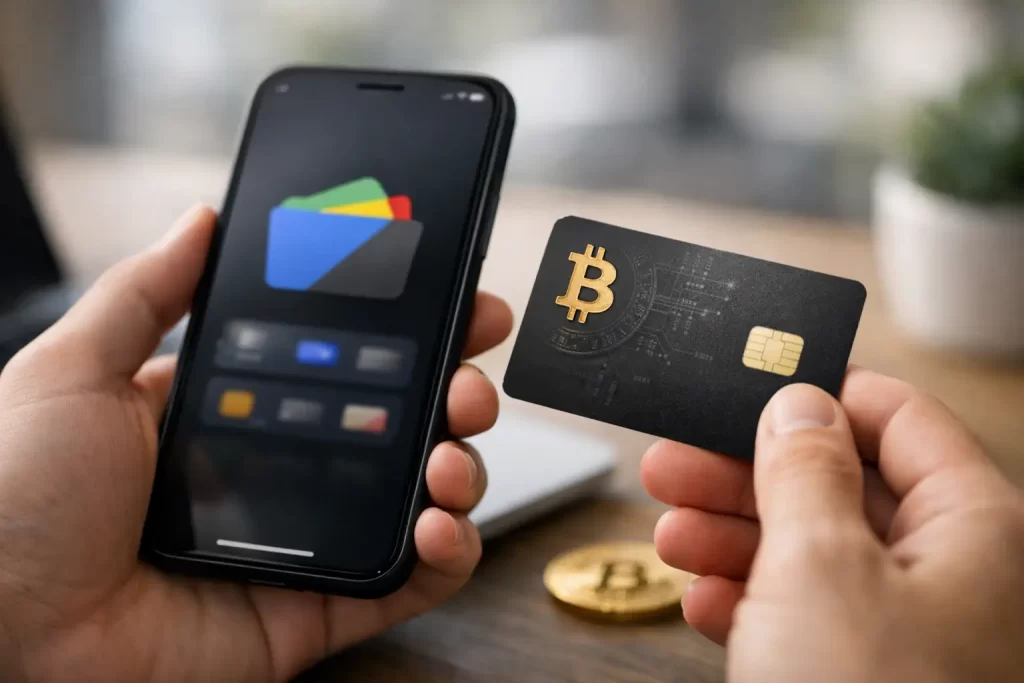
Table of Contents
How to add crypto card to Google Wallet step by step
Start by making sure your crypto card is actually eligible for Google Wallet. Not every virtual or physical card can be added, even if it carries a major card network. Some issuers support online purchases only. Others allow wallet tokenization only in certain countries. If your provider offers both a physical and a virtual card, either one may work, but the issuer has to enable Google Wallet support on the back end.
Open the Google Wallet app on your Android phone. Tap Add to Wallet, then choose Payment card. From there, you can either scan your card with your camera or enter the card details manually. If your crypto card issuer has its own mobile app, you may also see an Add to Google Wallet button there. That route is often faster because it pulls verified card details directly from the issuer.
Once you enter the card number, expiration date, and security code, Google will ask you to verify the card. This is the part that trips people up. Verification may happen by text message, email, issuer app push notification, or a quick identity check inside the card provider’s app. If the name, phone number, or region on your card account does not match what the issuer expects, provisioning can fail even if the card itself is active.
After verification, agree to the issuer and wallet terms. If approval goes through, your card is tokenized and stored in Google Wallet. That means your actual card number is not shared with merchants during in-store payments. Instead, Google Wallet uses a device-specific token, which adds an extra layer of protection.
At that point, you can set the card as your default payment method if you want to use it for tap-to-pay. On most Android devices, you are then ready to pay anywhere contactless cards are accepted.
What you need before adding a crypto card
Before you try to add anything, make sure a few basics are covered. Your phone needs NFC turned on for in-store tap payments. Google Wallet must be installed and supported in your country. Your Android software should be up to date, and your screen lock needs to be enabled because Google Wallet requires a security method such as PIN, fingerprint, or face unlock.
Your crypto card also needs to be active. That sounds obvious, but many people attempt wallet setup before finishing issuer verification, funding the account, or completing card controls in the issuer app. Some providers require 2FA to be enabled before wallet provisioning works. Others will not approve a wallet token if they detect unusual location data or account activity.
If your card is funded by stablecoins like USDT or USDC, understand how spending works before you add it. In most cases, the merchant is not accepting crypto directly. Your card program converts supported crypto into fiat at the moment of purchase or uses a fiat balance backed by your crypto account. That distinction matters because fees, exchange rates, and authorization timing can vary by issuer.
Why a crypto card may not add to Google Wallet
If you are wondering why your card keeps getting rejected, the answer is usually not Google Wallet alone. It is often a mix of issuer policy, compliance controls, and device settings.
The most common issue is simple incompatibility. Some crypto cards are not enabled for Google Wallet at all. Others support Apple Pay first and add Google Wallet later. Some work only with physical cards, while others allow only virtual cards. You may also hit a regional restriction if the issuer does not support wallet tokenization in your country, even if the card itself can be used internationally.
Identity and security checks are another big factor. Crypto card programs that take compliance seriously will screen for account risk before allowing card funding and mobile wallet use. That can include unusual IP behavior, mismatched personal details, failed KYC checks, or wallet activity that triggers enhanced review. It may feel like friction in the moment, but for a payments product tied to crypto balances, stronger controls are part of what keeps spending reliable.
Your device can also be the problem. If NFC is off, the bootloader is unlocked, the phone is rooted, or screen lock is disabled, Google Wallet may block setup. On some devices, an outdated version of Google Play Services causes payment cards to fail during provisioning.
Then there is the verification loop. If the issuer sends a one-time code to an old phone number or outdated email address, you will not get through verification. The fix is usually to update your account details with the card provider before trying again.
How to use your crypto card after adding it
Once the card is in Google Wallet, paying is easy. Unlock your phone, hold it near the contactless reader, and wait for confirmation. For small purchases, that can feel almost instant. For larger purchases, you may be asked to authenticate on the device first.
Behind the scenes, your card issuer handles authorization, balance checks, and any crypto-to-fiat conversion required to complete the transaction. If you are spending from stablecoin balances, this setup gives you a familiar debit-card experience without manually cashing out before every purchase.
That convenience matters most when you are moving across borders or juggling online income streams. Remote workers, travelers, freelancers, and crypto-native users often do not want the delay of selling assets, sending a bank transfer, and waiting for funds to settle. A supported crypto card in Google Wallet shortens that path dramatically.
Still, there are trade-offs. Merchant category restrictions may apply. ATM withdrawals may have different fees than point-of-sale purchases. Some cards offer excellent online and in-store acceptance but impose tighter risk controls on higher-value transactions. It depends on the issuer’s program design.
How to add crypto card to Google Wallet without problems
The fastest path is to treat setup like a security check, not just a card entry form. Make sure your issuer account is fully verified, your contact details are current, 2FA is enabled, and your card is activated before you open Google Wallet. If your provider has an in-app Add to Google Wallet button, use that instead of typing everything manually.
It also helps to check whether your card is meant for everyday spending or only limited use cases. A good crypto card should do more than exist in an app. It should support real-time funding, broad merchant acceptance, and strong protection around wallet access and transaction monitoring. That is especially true when the underlying funds come from digital assets.
This is one reason some users prefer platforms built around spending, not speculation. A card experience tied to stablecoins should feel immediate, globally usable, and secure by design. Providers such as KazePay position around that practical use case, combining crypto-funded cards with mobile wallet compatibility, multi-factor protections, and compliance controls that help reduce payment risk.
A few smart checks before your first tap
Before using your crypto card at checkout, make a small purchase first. That confirms your card token works properly in Google Wallet and gives you a baseline for how quickly transactions settle in the issuer app. It is a simple way to catch issues early.
You should also review foreign transaction fees, ATM rules, and conversion spread details if you plan to use the card while traveling. A card can be accepted worldwide and still have conditions that change the economics of how you spend. The smoother your payment experience, the more those details matter.
If your goal is simple – spend stablecoins anywhere regular cards are accepted from the phone already in your hand – Google Wallet is one of the easiest ways to make crypto usable in daily life. Get the setup right, keep your account secure, and your first successful tap feels less like a workaround and more like how money should move.
Add Stablecoins to Google Wallet and Tap to Pay
Getting your card into Google Wallet should be quick and clear. KazePay supports mobile wallet provisioning so you can add your crypto card, authenticate, and start spending USDT or USDC anywhere Google Pay is accepted.
Coffee, groceries, rides, airports, and online checkout — all from your stablecoin balance.
👉 Sign up for KazePay and tap to pay with stablecoins through Google Wallet.